In this article
If you're buying templates for your brand, you'll usually see two versions: Figma and Canva. They can hold the same designs, but they suit different people. Here's how to choose without overthinking it.
The short answer
- Choose Canva if you've never used a design tool, you want to edit on your phone, or someone else on your team posts for you.
- Choose Figma if you already know it, you want precise control over layouts, or a designer works with you.
- Choose both if you design in Figma but want a teammate or assistant to make quick changes in Canva.
What Canva is good at
Canva is built for speed. You open a template, click on text, type, drag in a photo, and download. It works in the browser and on your phone, and the learning curve is close to zero.
- Fast edits, even for people who have never designed anything.
- Easy sharing: send a link and anyone can edit.
- Built-in scheduling to Instagram on paid plans.
The trade-off: it's easier to break a layout by accident, and changing your brand colors across 100 designs takes more clicks. Some elements and photos in Canva's library are Pro only, but you can always swap them for your own.
What Figma is good at
Figma is a professional design tool. It feels like more at first, but it gives you real control.
- Components: change your logo or a button once, and it updates in every template that uses it.
- Precise layouts: spacing and alignment stay exactly right as you edit.
- Everything in one file: a full year of posts on one canvas, easy to scan and plan.
A free Figma account is enough to open, edit and export templates. The trade-off is the learning curve: plan an hour to get comfortable if you've never used it.
Questions to ask yourself
Who will post every week?
If it's you and you're not a designer, Canva. If it's a designer or a freelancer, Figma. If it changes from week to week, get both.
How often will you change your branding?
If you're still settling your colors and fonts, Figma's components save hours. Change the style once and every post follows.
Where do you edit?
On your phone between other tasks: Canva. At a desk with a big screen: either works.
Exporting for Instagram
Whichever you pick, export feed posts at 1080 x 1350 px (4:5) and stories at 1080 x 1920 px. Use PNG for posts with lots of text so the letters stay sharp, and JPG for photo-heavy posts to keep the file small.
Figma and Canva side by side
- Learning curve: Canva is easy from the first minute. Figma takes an hour or two to feel comfortable.
- Price: both have free plans that are enough to edit templates. Paid plans add brand kits, scheduling (Canva) and team features.
- Editing on a phone: Canva works well on mobile. Figma is best on a computer.
- Changing your branding: Figma's components and variables let you change colors or a logo once for every post. In Canva you change them post by post, or with the Brand Kit on paid plans.
- Working with a designer: designers almost always prefer Figma.
- Sharing with a team: both make it easy. Canva is simpler for people who don't design.
Which one is better for Instagram templates?
For posting every week, both do the job well. The question isn't which tool is better, it's which one the person posting will actually open. A great Figma file that nobody on your team can edit is worse than a simple Canva template that gets used every day.
A common setup for small brands: the founder or a designer sets up the look in Figma, and the day-to-day posting happens in Canva. That's why some kits come in both formats.
Switching later
If you start in Canva and later hire a designer, you won't lose your work: the designer can rebuild your posts in Figma using the same fonts and colors. Going the other way works too. Buying a kit in both formats saves that step.
Tips for whichever you choose
- Set up your brand once. Add your fonts, colors and logo before editing any templates.
- Keep a "master" copy. Duplicate templates before editing, so you always have a clean version.
- Name your files by month. "2027-01 January" is easier to find than "Untitled design 47".
- Check text on a phone. Before exporting, zoom out to phone size and make sure every line is readable.
Questions people ask about Figma and Canva
Can I open a Figma template in Canva?
Not directly. They're different file formats. You can import images from one to the other, but the text and layers won't stay editable. That's why kits offer separate versions.
Is a free Figma account enough for templates?
Yes. A free account can open, edit and export any template you buy. Paid plans are for teams and larger projects.
Are Canva templates editable on the free plan?
Yes. Some photos or elements inside a template can be Pro only. You can swap them for your own photos, which you'll want to do anyway.
Which is faster for posting every day?
Canva, for most people, because it's quick on a phone and has scheduling built in on paid plans. Figma is faster for preparing a whole month at once.
Keep reading
Whichever tool you pick, the next step is planning what to post: start with how to plan a month of Instagram posts, and keep the look tidy with consistent product photos on a small budget.
Our kits come in both
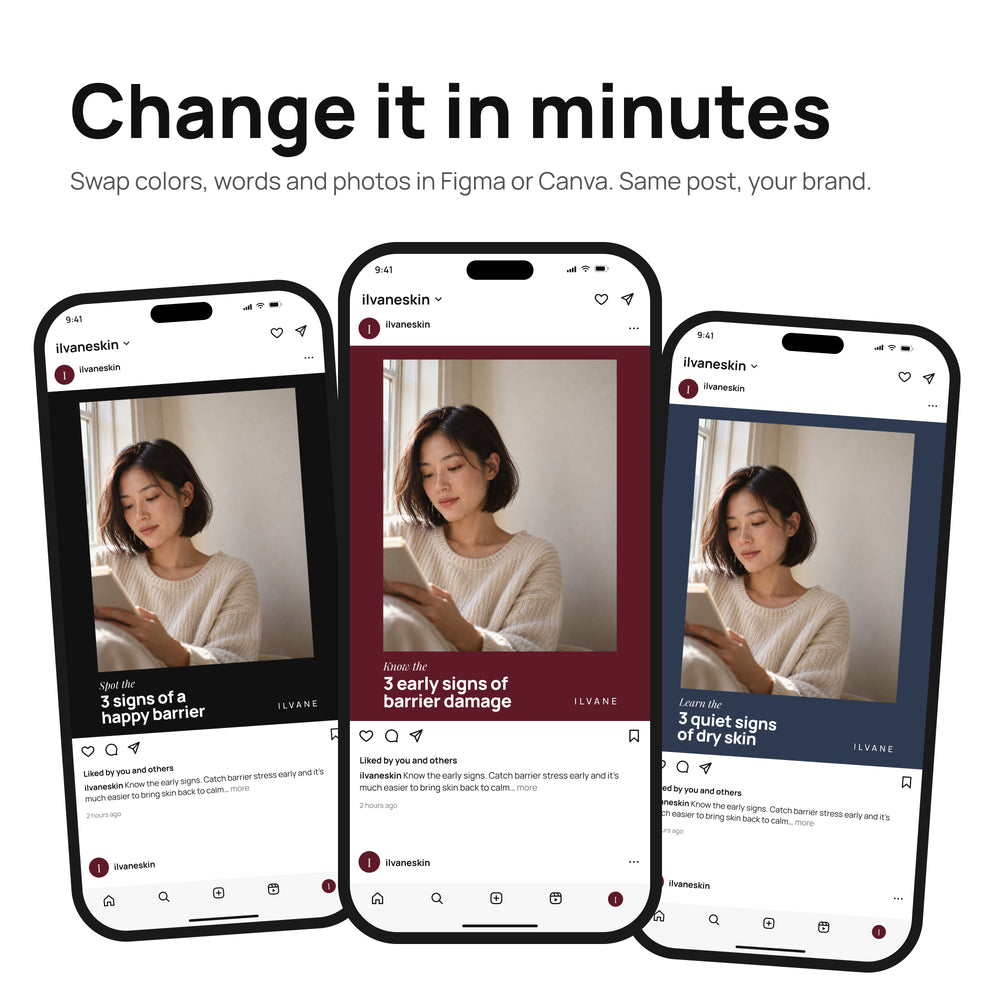
The Ilvane Skin social kit is available in Figma, in Canva, or as both together. The posts, stories and ads are the same in each version, so you can start in one and switch later.